> For the complete documentation index, see [llms.txt](https://docs.lassomoderation.com/llms.txt). Markdown versions of documentation pages are available by appending `.md` to page URLs; this page is available as [Markdown](https://docs.lassomoderation.com/moderator-toolkit/sending-messages.md).
# Sending Messages
Communicate with your platform's users directly from Lasso, to explain decisions, share guidelines or reply to content.
Send Message lets moderators communicate directly with the users of your platform from within Lasso. Instead of silently removing content or banning a user, a moderator can explain a decision, ask for clarification, or point a user to your community guidelines. Messages are delivered on your own platform, for example as a direct message to the user or as a reply under a piece of content.
{% hint style="info" %}
Lasso does not deliver the message to the user itself. The message is sent to your platform through [webhooks](/developers/webhooks.md#send-message), and your platform decides how to deliver it (as a DM, a reply, an email, and so on). Make sure you have an active webhook configured under **Settings → API & Webhooks** and that your endpoint handles the `SendMessage` action.
{% endhint %}
### What you can use it for
* Explain why content was removed or a user was sanctioned.
* Send a friendly reminder about your community guidelines before taking harder action.
* Ask a user for more context on a report or a piece of content.
* Post an official moderator reply under a piece of content.
### Where to find it
Send Message is available anywhere you see the **⋯** menu on a user or a piece of content:
* **User page**: open a user and click the **⋯** menu next to their name, then choose **Send Message**. The message is sent to the user directly.
* **Content**: open a piece of content (from the content explorer or a user's content list) and choose **Send Message** from the content's **⋯** menu. The message is sent as a reply to that piece of content.
* **Review queues**: while reviewing, both the content card and the user panel have the same **⋯** menu, so you can message the user without leaving the queue.
### Sending a message
1. Open the **⋯** menu on the user or content and choose **Send Message**.
2. Optionally pick a saved template from **Template (optional)**. The template's title and text are loaded into the title and message fields, where you can still edit them before sending.
3. Optionally fill in **Title (optional)**. The title is sent along with the message, so your platform can use it as a subject line, for example when it delivers messages as email.
4. Write or adjust your message. You can use variables to personalize it:
* `{{user_name}}` is replaced with the recipient's name.
* `{{moderator_name}}` is replaced with your name.
5. Optionally click **Insert snippet** above the message field to add a saved piece of text, such as a link to your appeal form. Search for the snippet by title and click it to insert its text at your cursor.
6. Click **Send message**.
The variables work in both the title and the message. They are filled in when the message is sent, so the user receives the final text, for example "Hi Ada, please keep it friendly. Grace, the moderation team".
Every sent message is recorded on the user's or content's activity timeline with a **Messaged** badge, and in the audit logs, so your team can always see who sent what and when.
### Message templates
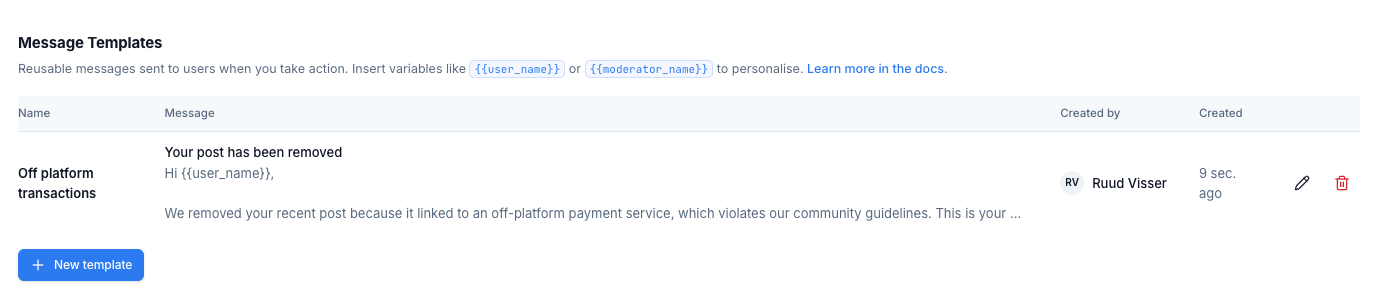
If your moderators send the same kinds of messages often, admins can create reusable message templates under **Settings → Moderation Preferences → Message Templates**.
* Templates are shared with the whole workspace.
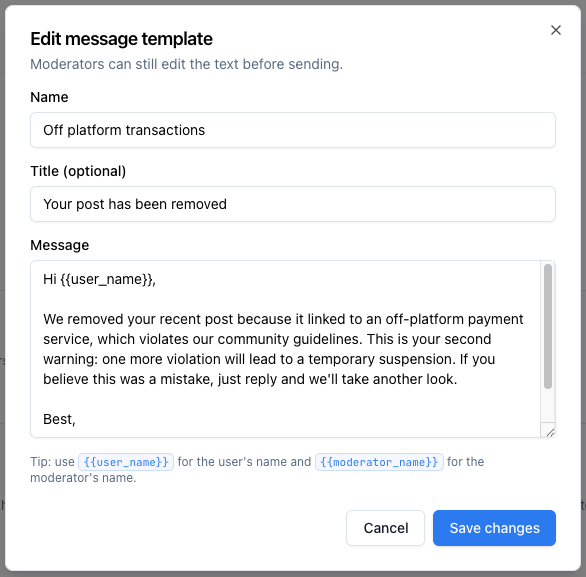
* Each template has a **Name** (shown in the template picker), an optional **Title**, and a **Message**.
* Templates can contain the `{{user_name}}` and `{{moderator_name}}` variables, in both the title and the message.
* Moderators can always edit the text after picking a template, so templates work well as a starting point rather than a fixed script.
* Editing or deleting a template does not affect messages that have already been sent.
### Message snippets
Snippets are short pieces of text that moderators insert into a message while writing it, like a link to your appeal form, a rules reminder, or a standard sign-off. Where a template sets up the whole message, a snippet adds one reusable part to it, so you can combine several snippets in the same message.
Create snippets under **Settings → Moderation Preferences → Message Snippets**.
* Snippets are shared with the whole workspace.
* Each snippet has a **Title** (what moderators search for) and a **Text** (what gets inserted).
* Snippets can contain the `{{user_name}}` and `{{moderator_name}}` variables.
* The **Insert snippet** link only shows in the message dialog once at least one snippet exists.
* A snippet is inserted where the cursor is in the message field, or replaces the selected text. Picking a template afterwards replaces the whole message, including any inserted snippets.
* Editing or deleting a snippet does not affect messages that have already been sent.
### Messaging with a moderation action
When you remove or allow content or a user from the action dialog, a **Notify** section at the bottom lets you send messages together with the action, without opening Send Message afterwards:
* **Message the author** (or **Message the user** when you action a user) sends a direct message to the person the action is about.
* **Message N reporters** appears when the reports you are marking as handled have reporters. Every reporter gets one message, even when they reported the same thing several times, and `{{user_name}}` is filled in with each reporter's name. Unticking a report in the report selection above also removes its reporter from the list, and under **Edit** each reporter in the **To** list has a tick box, so you can leave out someone who should not hear back, for example a reporter who filed under the wrong category.
Both rows are preselected from the policy category's message defaults (see below) and show the template that will be used. Click **Edit** to see the recipients, pick another template, insert snippets or adjust the title and text for this one action, or untick a row to send nothing.
The messages are sent as `SendMessage` actions in the same webhook call as the action itself and the `HandleReports` action, so your platform can deliver them together. On the activity timeline and in the audit logs they are shown as messages to the author or to the reporter, with the reports they answer.
{% hint style="info" %}
Messages on actions are enabled per workspace by the Lasso team, on top of messaging itself. The Notify section only shows for allow and remove actions taken from the action dialog. Actions taken by rules, AI moderators, hotkeys or the API send the policy category's default messages as they are, the same way DSA reports are filed automatically, so only set defaults on a category when every action with it should notify.
{% endhint %}
### Message defaults per policy category
Admins can pick the templates that the action dialog preselects per policy category under **Policies → Categories**, in the **Messages** section of a category: one template for the author or user and one for the reporters, or **No message**. A category without defaults still shows the Notify rows, but unticked and without a template.
This is what makes the messages automatic in the common case: a moderator who removes a post under "Animals" gets the "Removed: animal sales" message to the author and the "Report upheld: animal sales" message to the reporters preselected, and only has to confirm the action. The same templates are preselected when content is allowed under that category, so keep categories used for allowing separate from categories used for removing.
### Delivering messages on your platform
When a moderator sends a message, Lasso sends a `SendMessage` action to your webhook endpoint. The payload contains the final message text and, if set, the title (variables already resolved), the moderator who sent it, and either the user to message or the content to reply to. Messages sent with a moderation action also carry the id of the action they accompany and, for reporters, the reports they answer (with your own report id when you sent one). Your endpoint is responsible for delivering the message in your product.
If your webhook rejects the delivery, the failure is recorded on the action in the activity timeline, so moderators can see the message was not delivered.
See the `SendMessage` example on the [webhooks](/developers/webhooks.md#send-message) page for the full payload and delivery details.